Create, format, edit and save notes, or keep unfinished writing as a draft.
Last reviewed: 2026-10-31
Keep a thought, then return to it
Edit a note when you want to change its original wording. Add a reflection when you want to keep a later perspective alongside it.
Start with the essentials
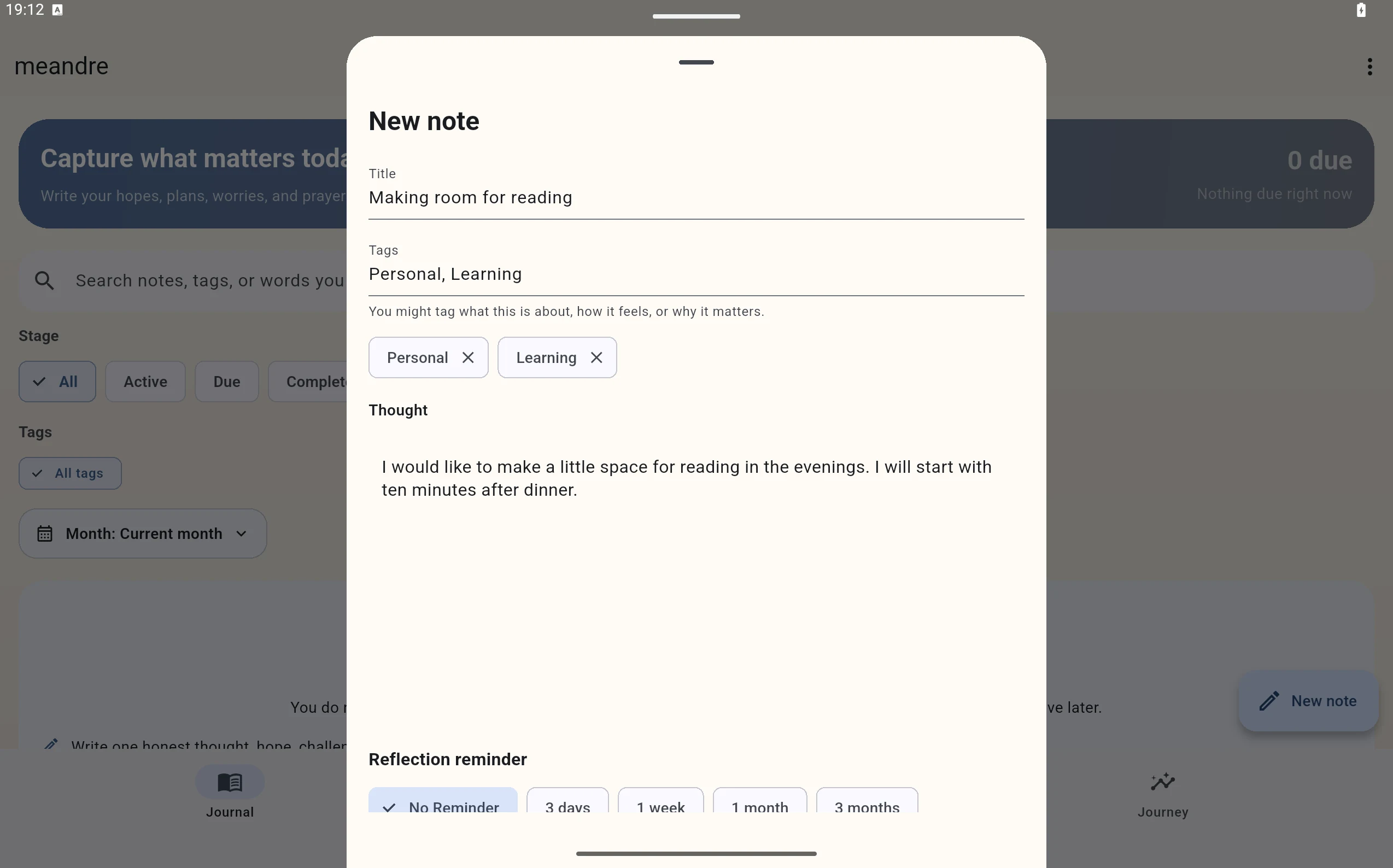
For a new note, complete Title, Thought and at least one tag. If you would like a step-by-step example, start with Create your first journal entry.
Write on Android phone or tablet
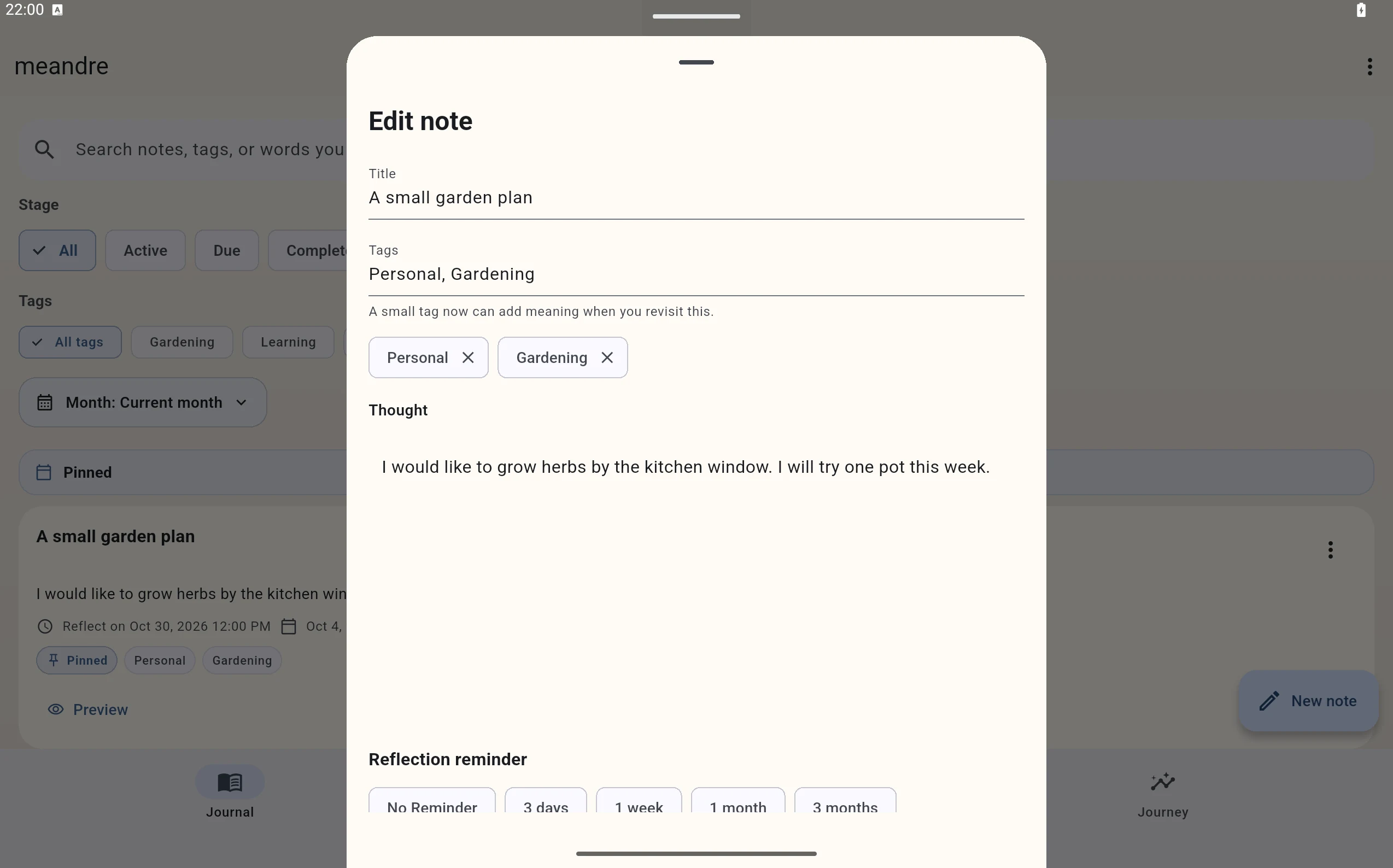
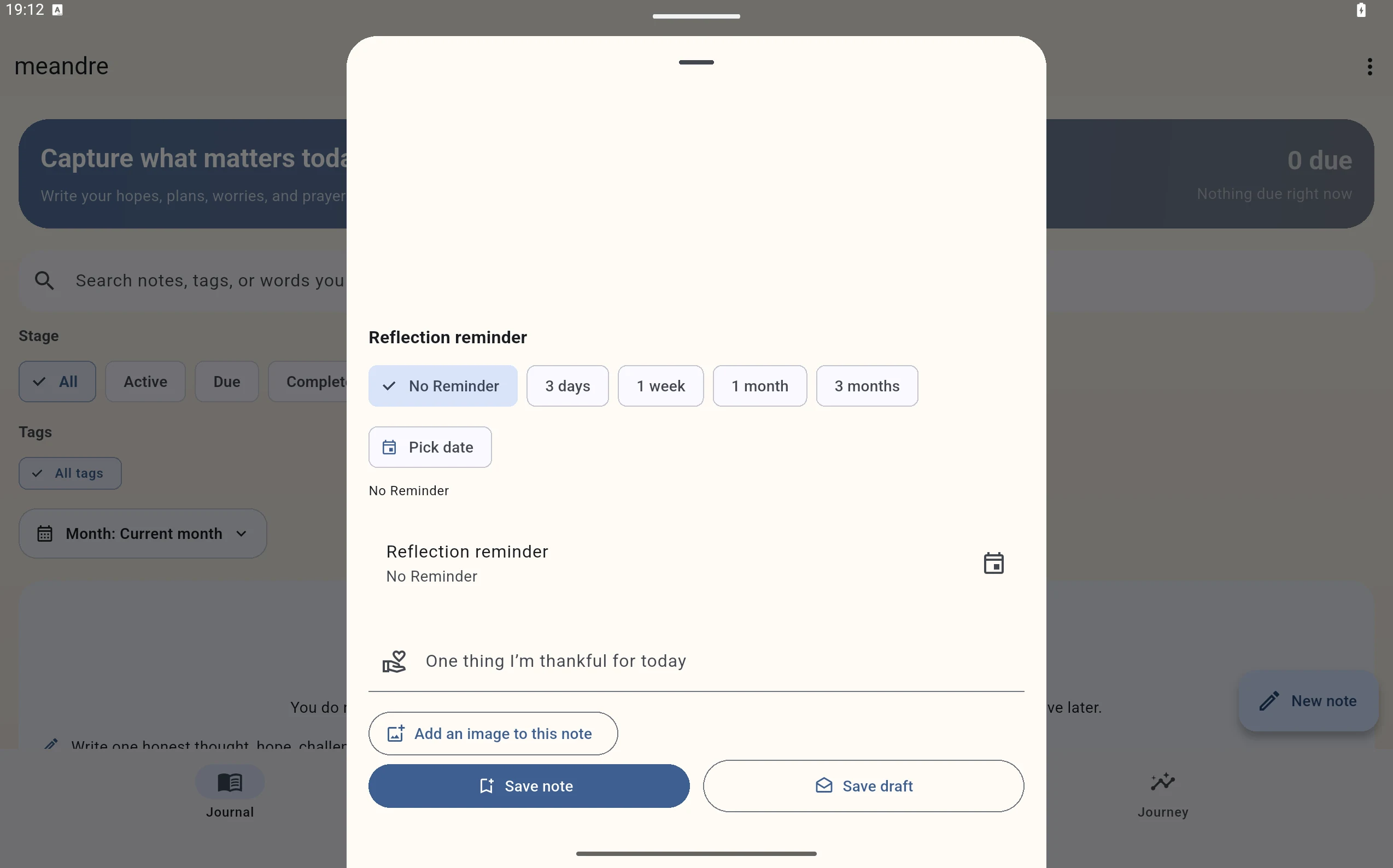
Select New note to open the writing sheet. To edit an active note, open its Note actions menu and select Edit. Scroll through the form to reach its lower fields and save actions.
Create or update a note
- Open the active note you want to change, or choose New note. Use the navigation for your device above.
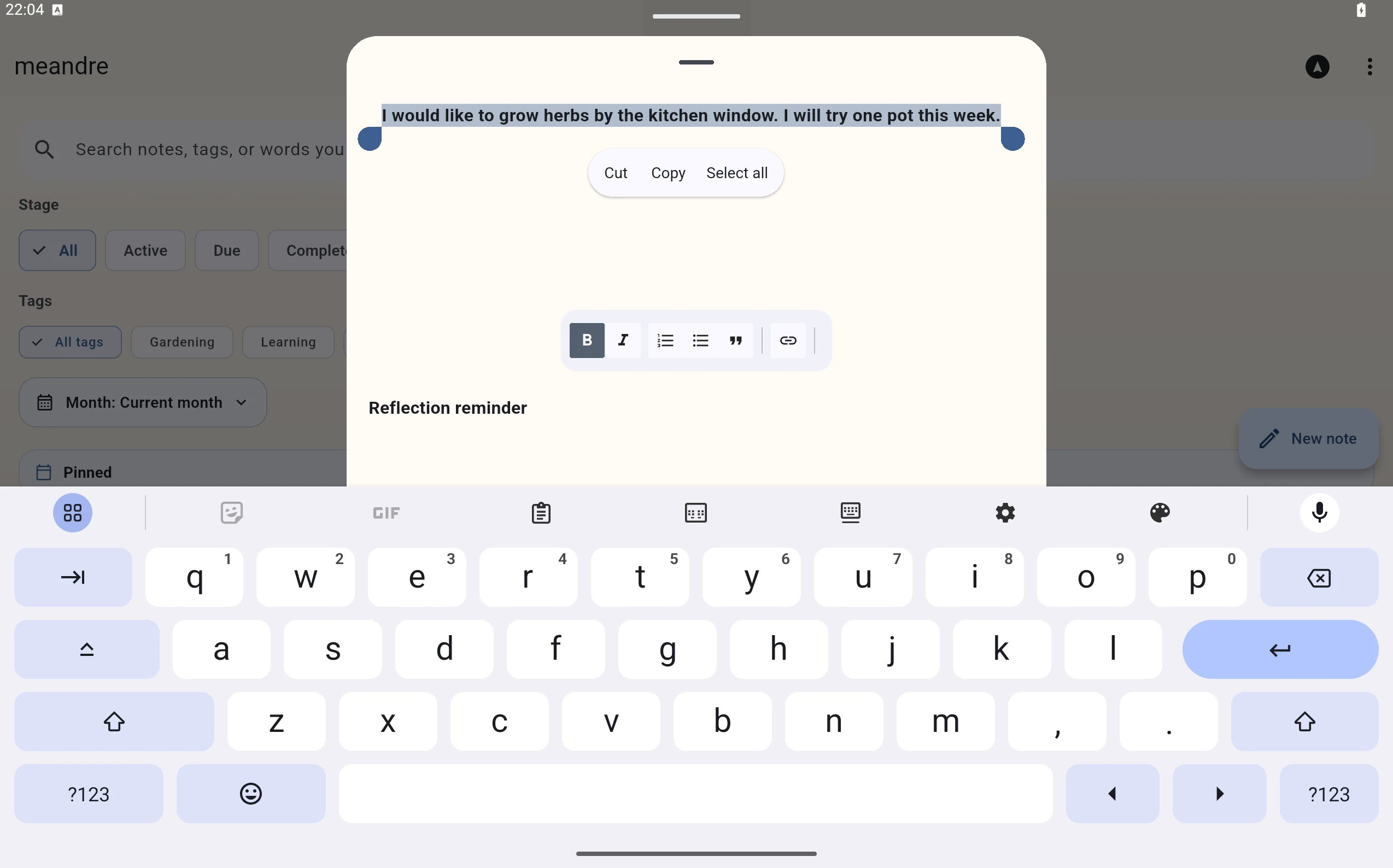
- Change Title, Tags or Thought. To format writing, focus Thought, select the text and choose bold, italic or another toolbar control.
- Check the reminder, gratitude and any attached image. Scroll the form to reach fields below the visible area.
- Choose Update note to save changes to an existing note, or Save note for a new one. Open it again to check your changes.
 Enlarge screenshot (opens in a new tab)
 Enlarge screenshot (opens in a new tab)
 Enlarge screenshot (opens in a new tab)
 Enlarge screenshot (opens in a new tab)
 Enlarge screenshot (opens in a new tab)
Add an optional image
Select Add an image to this note and choose an image. Use Remove attachment on its preview if you change your mind. Image attachments are supported; this is not a general document-attachment instruction.
 Enlarge screenshot (opens in a new tab)
Choose an image on a tablet
Choose Take a photo or Choose from photo library. Give permission if you want to continue, or cancel without adding an image.
Keep unfinished writing
Select Save draft when you are not ready to save a note. You can save incomplete writing as a draft without satisfying the note fields, provided the draft is not empty. In Journal, choose Drafts under Stage and select the draft to continue. Choose Save note once the required fields are complete.
The editor also saves a session draft after changes, and a new composer can restore that session. Use Save draft to make an explicit draft you can find later; session recovery is not a substitute for checking that your note saved. Editing an existing note still requires Update note to change the saved original.
 Enlarge screenshot (opens in a new tab)
Your writing is saved
Your saved note contains the updated writing. A later reflection belongs in the reflection history, so you can keep both perspectives.
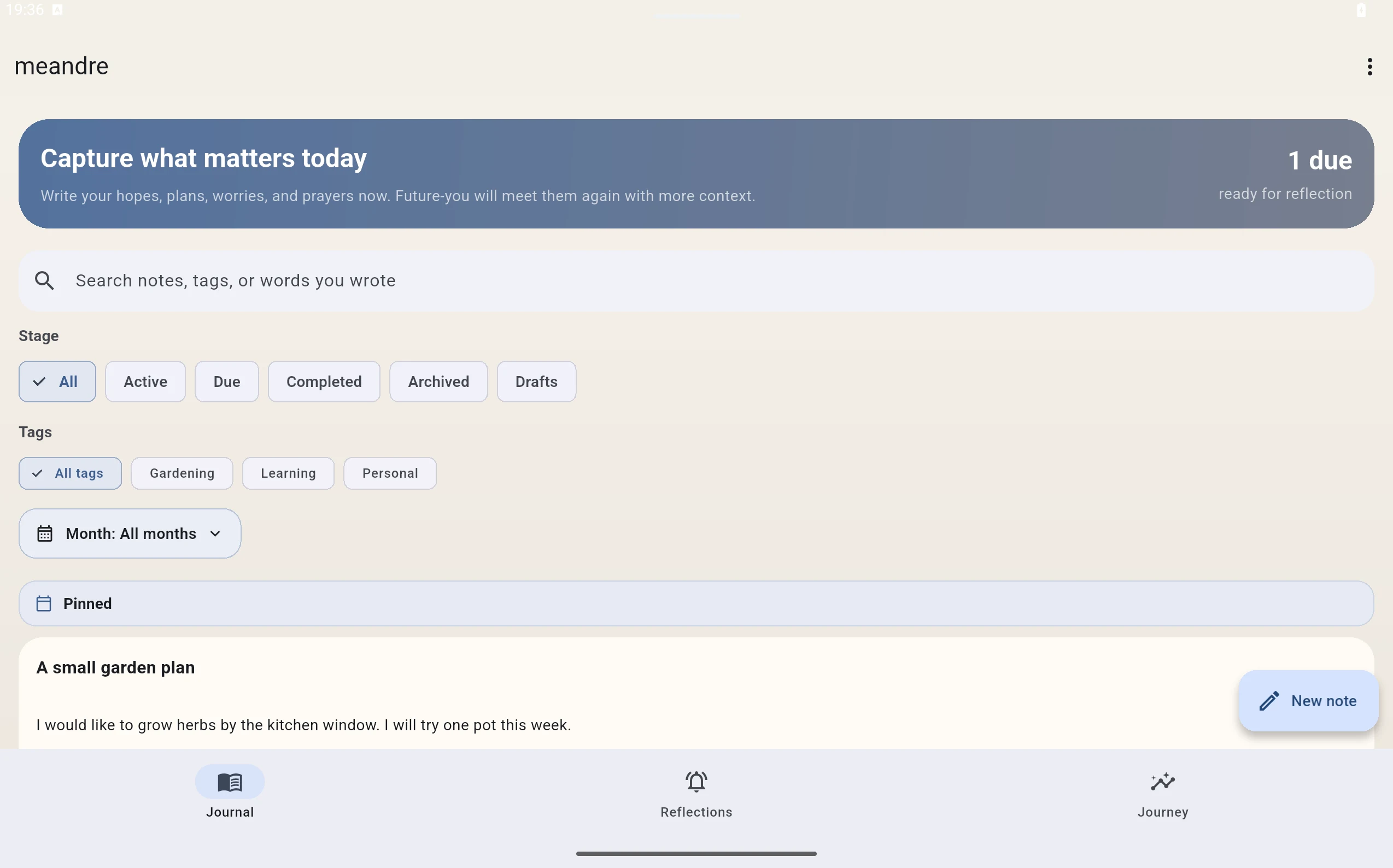 Enlarge screenshot (opens in a new tab)
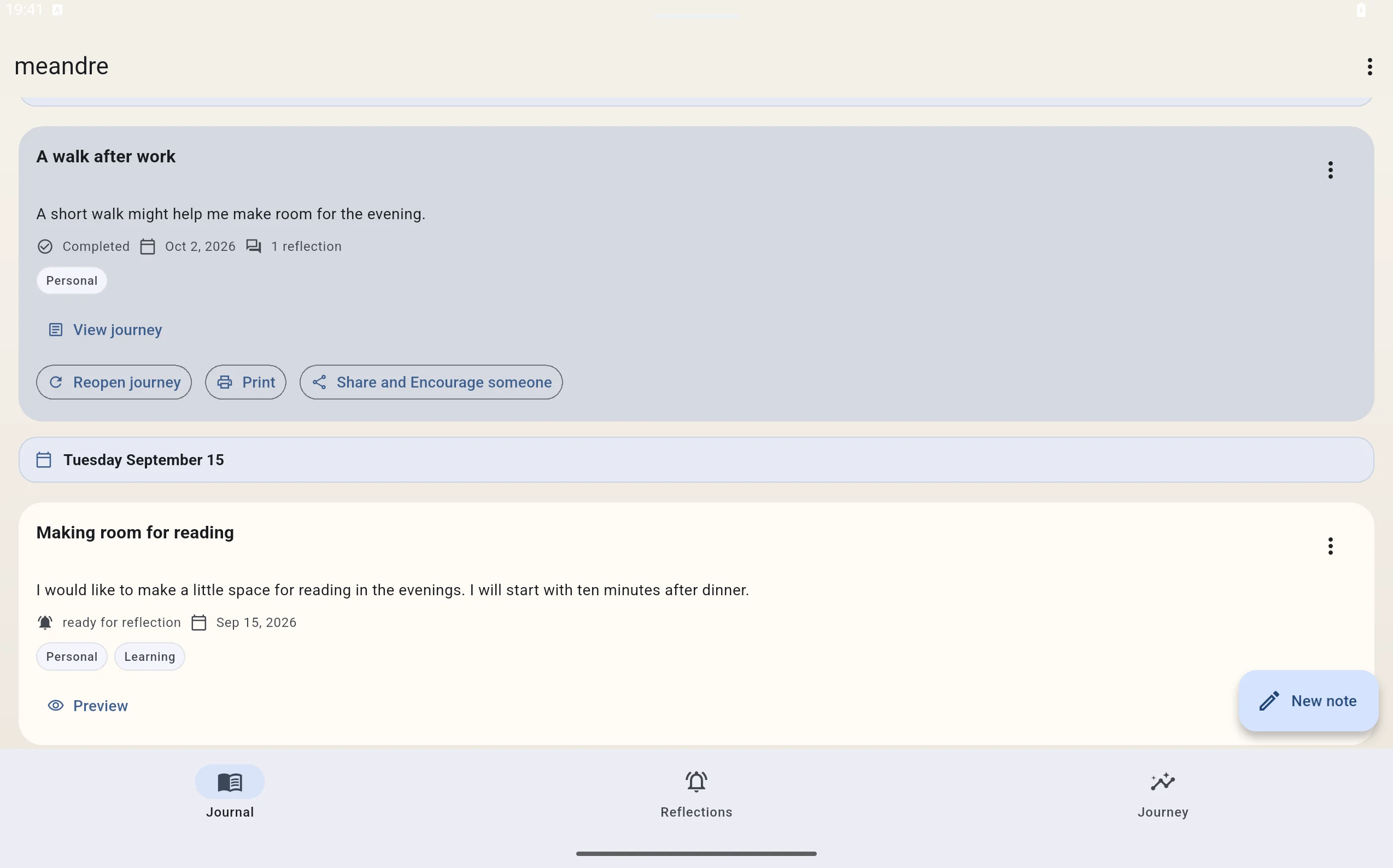 Enlarge screenshot (opens in a new tab)
Return when you are ready
Tags and filters help you find the note again.
If saving or finding the note is difficult
Check for Add a title., Add at least one tag. or Write something before saving. Fill the required field and try the save action again.
If an image cannot be added, check the permission or format message. You can continue writing without it. If the saved note is hidden, clear search and use All, All tags and All months; check Drafts if you used Save draft.