Choose a review date, find due notes and record a later reflection with your own progress rating.
Last reviewed: 2026-10-31
Make room to return
A reminder is an invitation to revisit a note. A later reflection lets you record what has changed and choose when to return again. Progress is your own judgement, not a target to meet.
Separate a reminder date from an alert
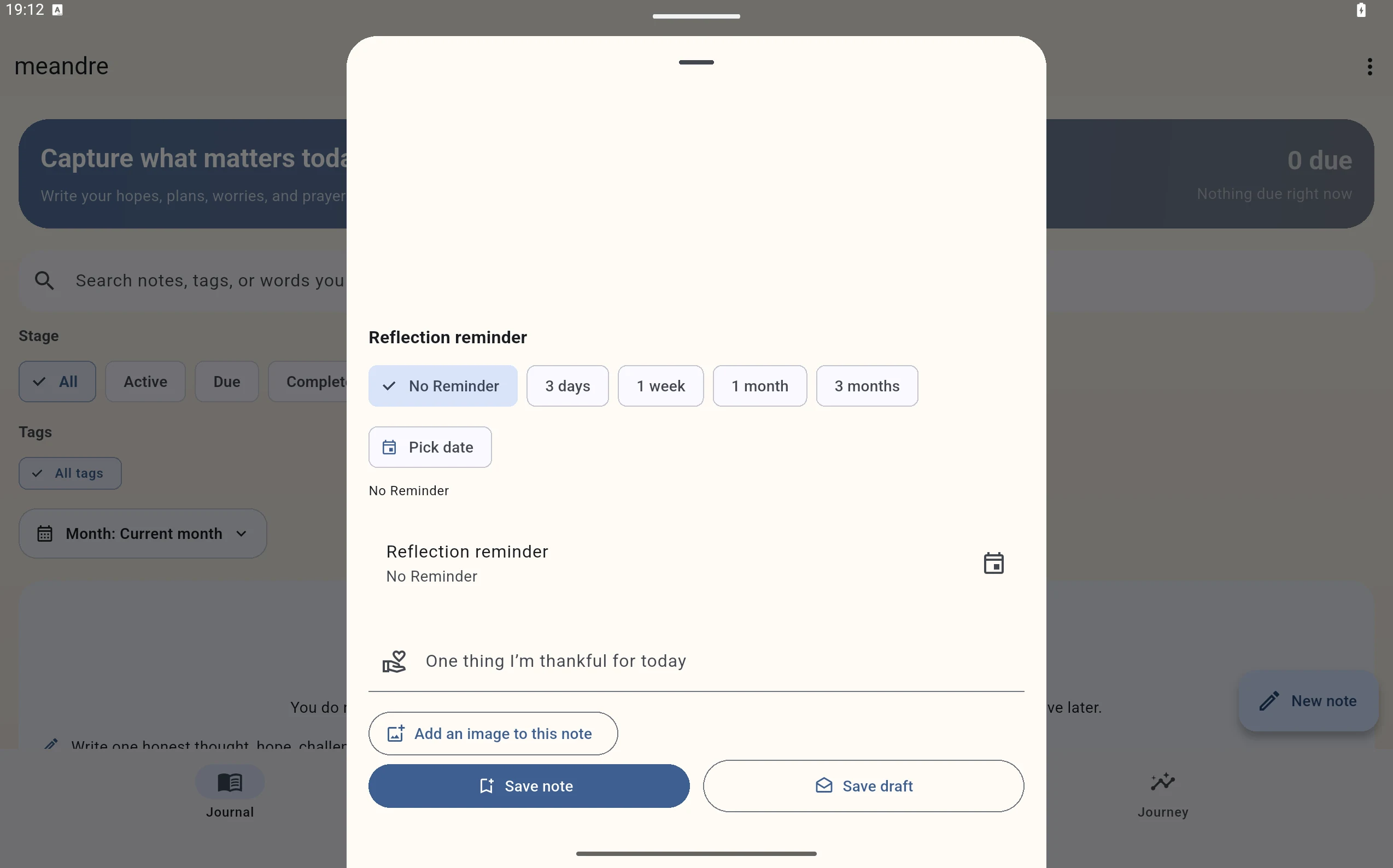
A reminder gives the note a date to return to. Allow notifications in your device settings if you want an alert as well.
Choose a date and record a reflection
- Open a new note or edit an active one. Under Reflection reminder, choose 3 days, 1 week, 1 month, 3 months or Pick date. A new note begins about 30 days ahead. Pick date asks for both a date and time; No Reminder removes the note reminder. Save note or Update note to save your choice.
- When you want to return, open Reflections and select Reflect now on the note. On desktop, selecting a note opens its reflection workspace. You can also find due notes in Journal with Stage set to Due; choose All months so older notes are included.
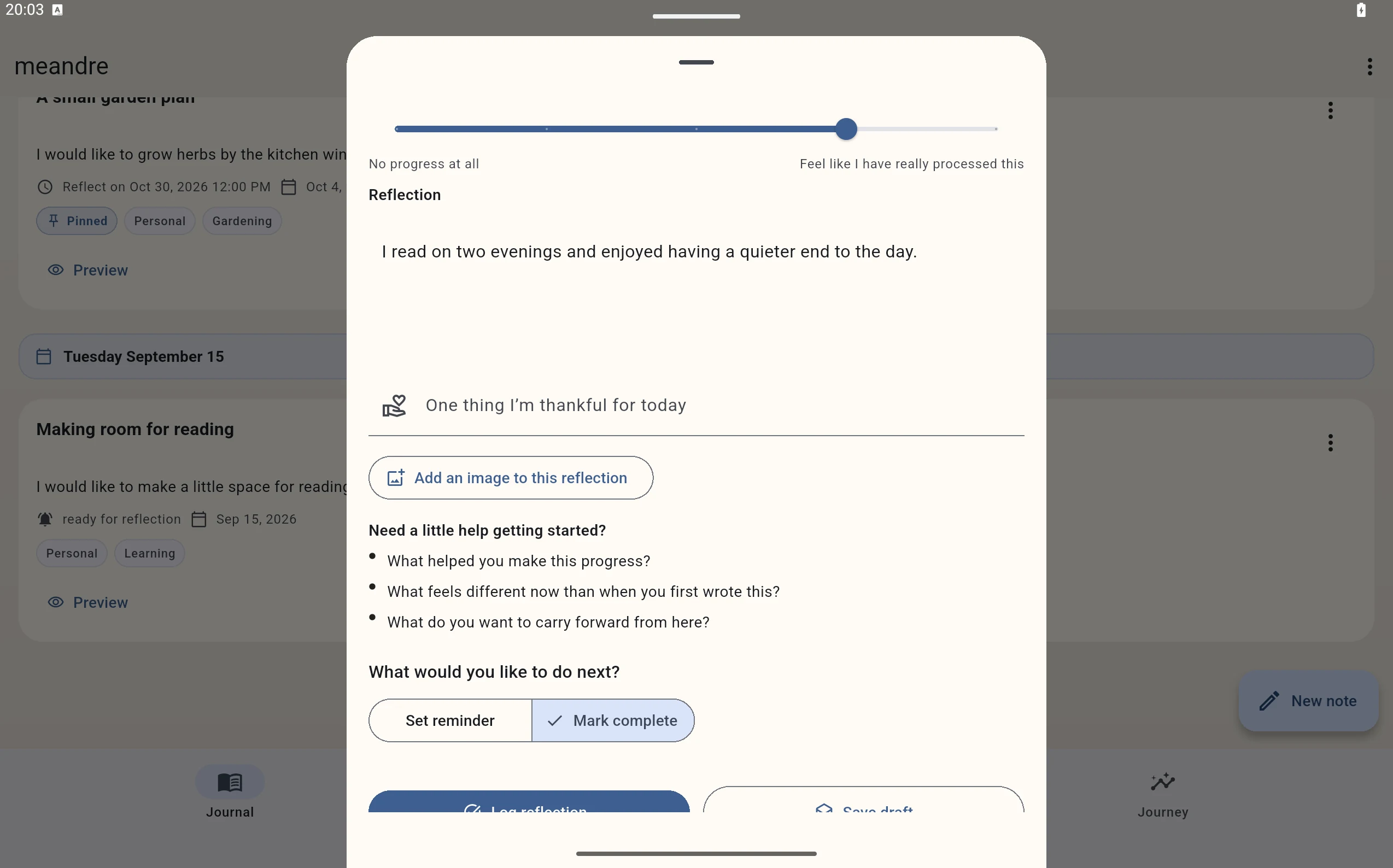
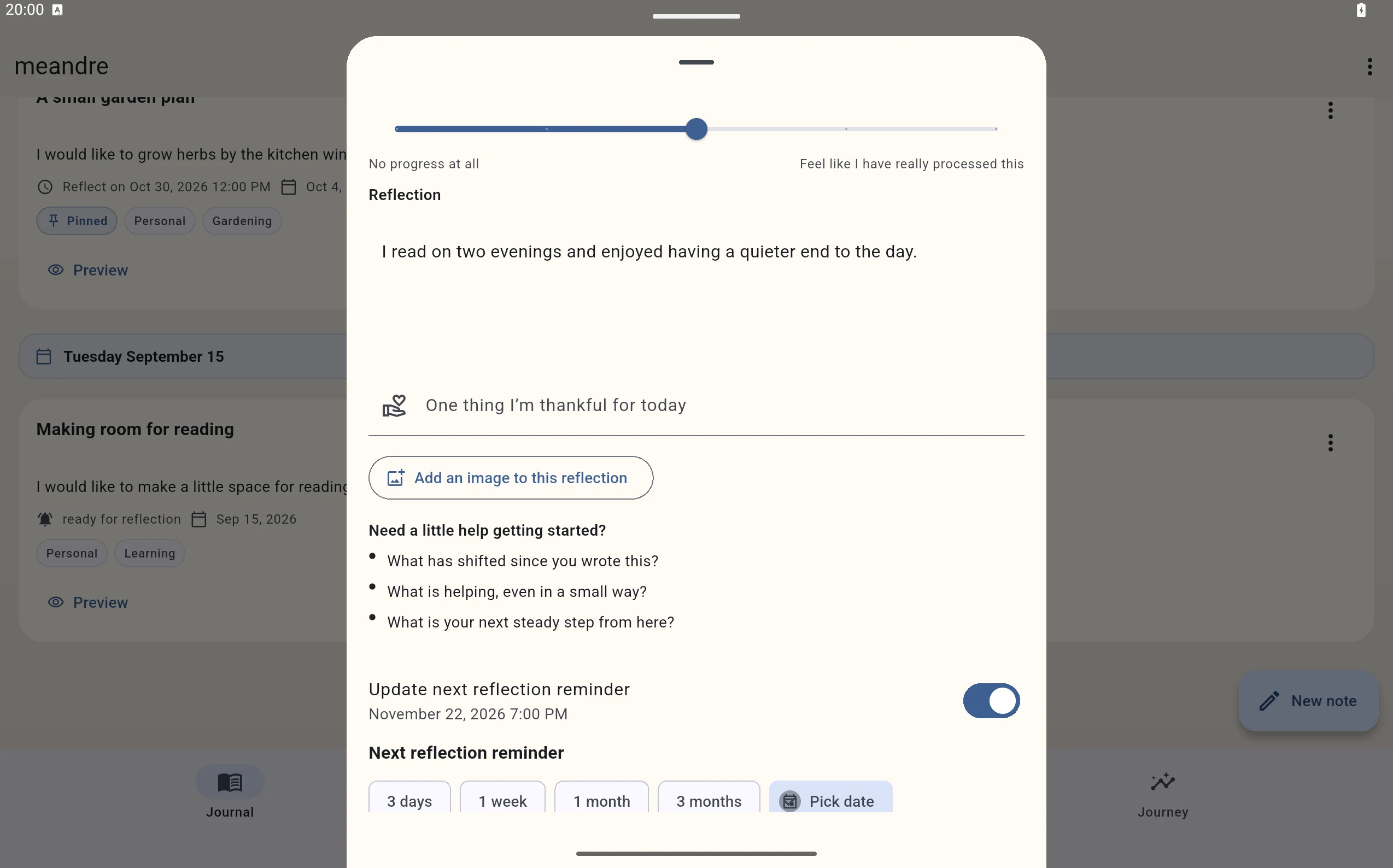
- Read the original and previous reflections. Adjust How much progress have you made? to the choice that fits today, then write in Reflection. Fictional example: “I read on two evenings and enjoyed having a quieter end to the day.”
- For another visit, enable Update next reflection reminder and choose a preset or date and time. Leaving the switch off keeps the current reminder date, which may still be due.
- At progress 4 or 5, What would you like to do next? offers Set reminder or Mark complete. Choose Set reminder to keep returning, or Mark complete when that feels appropriate.
- Select Log reflection to save your reflection and the selected next action, including Mark complete if you chose it. Check Reflection history for the saved reflection.
 Enlarge screenshot (opens in a new tab)
 Enlarge screenshot (opens in a new tab)
Choose from the five progress values
The slider has five positions: 1 — No progress at all; 2 — Very little progress; 3 — Starting to make progress; 4 — Making really good progress; 5 — Feel like I have really processed this. A new reflection starts at 3, so check the selection rather than treating it as a recommendation.
The completion option appears at 4 or 5; choosing a high value alone does not complete a note. You decide whether to mark it complete. You can keep reflecting even when progress feels small.
 Enlarge screenshot (opens in a new tab)
Find what is due
Due means an active, unarchived note whose reminder date has passed. Completed or archived notes are excluded. A note with No Reminder has no date to make it due.
Removing a reminder does not complete a journey. Use Mark complete when you mean to finish it; check Stage if a card’s label is unclear.
Review on iPad or Android tablet
Use Reflections in the bottom navigation. A reflection opens in a sheet; scroll within it to reach further fields and actions. Tablet width does not turn this into the desktop workspace.
Your later perspective is part of the entry
A logged reflection records your text and progress in the note’s history. Updating the reminder chooses the next visit; completing the journey removes it from the due queue. Keeping the current reminder can leave it due.
You can return later and read the history. Writing a reflection is separate from editing the original note. Save draft can keep an unfinished reflection; it does not log a completed reflection.
 Enlarge screenshot (opens in a new tab)
Revisit at your own pace
Use tags or older-entry filters to find this note again.
If a reminder or reflection is missing
If you see Write a short reflection., add text in Reflection before saving. If a due note is hidden, clear search and tags, choose All months, and check whether it is archived or completed.
If no alert arrives, check notification permission and Focus or Do Not Disturb. The troubleshooting guide has the device checks.