Set a privacy PIN, understand biometric limits and make an informed decision before a forgotten-PIN reset.
Last reviewed: 2026-10-31
Protect access to your journal
The privacy lock places an app-level PIN screen in front of your journal. It is separate from encrypted backup files and the security provided by your operating system.
Choose a PIN you can keep safely
Keep your four-digit Meandre PIN somewhere safe. It is separate from your device PIN and from the secrets used for backups or sync.
Set, lock and unlock your journal
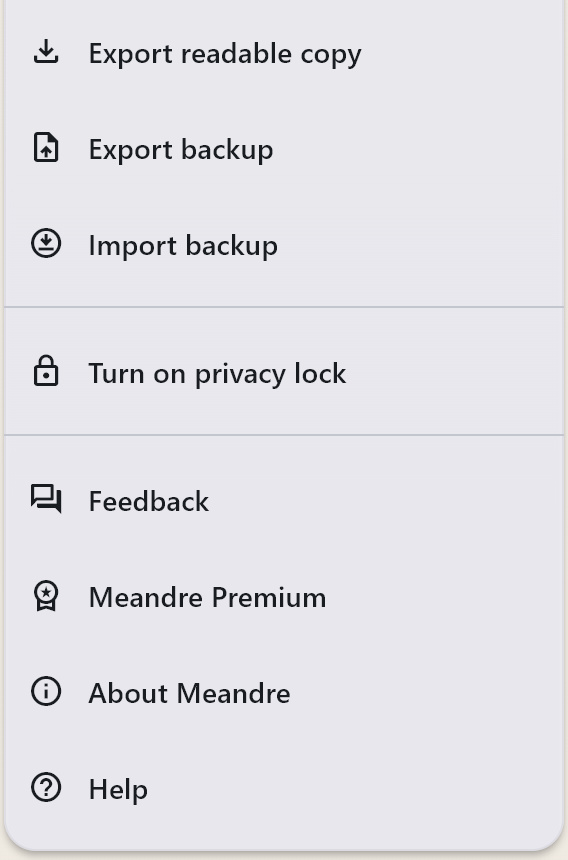
- Open Settings and select Turn on privacy lock.
- Enter a four-digit PIN, repeat it in Confirm PIN and select Save PIN. Do not share or capture the digits.
- In Settings, select Lock now to hide the journal behind the lock screen.
- Enter your privacy PIN and select Unlock to return to the journal.
- To change it, select Change privacy PIN in Settings, enter the current PIN and select Continue, then enter and confirm the new PIN and select Update PIN.
- To remove the lock, select Turn off privacy lock, verify your current PIN and select Turn off. This also removes the biometric preference.
 Enlarge screenshot (opens in a new tab)
When the journal locks
Once a PIN is set, Meandre locks on startup and when the app is hidden or left in the background. You can also choose Lock now. Setting a PIN leaves the current journal open until it locks.
Use the privacy PIN on Windows
Use your Meandre privacy PIN on Windows. If biometric unlock is offered but does not work, return to the PIN instead of resetting your journal.
What the lock protects
The lock restricts access through Meandre’s interface. It does not encrypt the local journal database, secure copies you have exported, or guarantee protection against someone who controls your device or its storage. Protect your operating-system account, device lock and saved files too. Locking cannot retract a file already handed to a system save or share operation.
If you forget your PIN
If you previously enabled biometric unlock and it still works, try it first. Otherwise, Meandre cannot reveal or recover a forgotten PIN. Forgot PIN? opens Reset this device?. Choose Cancel unless you intend to erase local data.
Reset removes local notes, reflections, drafts, reminders, attachments and app settings, including local sync and recovery details. It does not cancel a store purchase or delete separately saved backups, exports or your encrypted Drive archive.
Only an existing usable backup or accessible sync archive, with its matching unlock material, can help you recover writing afterwards. Do not reset to find out whether one exists.
 Enlarge screenshot (opens in a new tab)
Before relying on protection
Check that your PIN unlocks the journal before relying on it. Keep an encrypted backup and its unlock material somewhere separate from the device.
If unlock or reset fails
If biometric unlock fails, use the Meandre PIN. If a reset reports an error, stop and contact support: some data may already have been removed. Do not keep trying destructive actions.
Choose your next careful step
Keep a recovery copy as well as protecting access to the app.