Understand optional encrypted sync, account and archive choices, conflict handling and the limits of cross-device continuity.
Last reviewed: 2026-10-31
Optional continuity through Google Drive
Your local journal remains usable without Google sign-in. Google Drive sync is optional transport for an encrypted journal snapshot. It is different from an independently saved backup and from a readable export.
Check access and keep a backup
Google Drive sync needs Premium access, including an active trial. Save an independent encrypted backup before connecting to an existing archive.
Connect and synchronise carefully
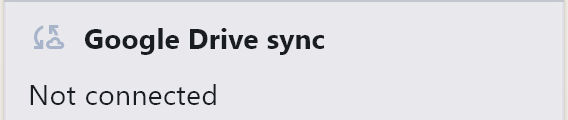
- Open Settings and find Google Drive sync. Read the connection status.
- If Connect Google Drive is available, select it and complete the Google-owned sign-in and Drive consent process with the intended account. Cancel if the account is wrong.
- Return to Meandre and check that connection succeeded; an opened consent screen alone is not proof.
- Select Sync now. If prompted, choose the intended existing encrypted sync archive or create a new one. Creating a new sync space does not delete existing archives.
- For an existing archive, provide its sync passphrase or an active sync recovery code. For a new one, follow the sync-secret prompts and keep its separate recovery material privately; new passphrases require at least eight characters excluding leading/trailing spaces in the length check.
- Wait for the sync result and check the local journal. On another device, connect the same account, select the same archive, supply its unlock material and inspect the result before continuing.
 Enlarge screenshot (opens in a new tab)
Authentication on macOS and Windows
On macOS and Windows, Google sign-in opens in your browser. Finish there and allow it to return to Meandre, then check the connection status.
What travels in the archive
Sync carries saved notes, writing, gratitude, tags, reflections, reminders, completion and archive state, and attachments. Deletions can travel between devices too. In-progress drafts, privacy PINs, appearance and device settings are separate.
The journal archive is encrypted before it leaves your device. Google can still see account activity and file metadata. Keep the sync archive’s passphrase or recovery codes separately from your manual backup secrets.
Conflicts may choose one version
If you edit the same note on two devices before syncing, one whole-note version can replace the other; the app does not merge the wording or both sets of reflections. A deletion can also take precedence over an edit.
Sync one device before continuing on another when possible, and keep a backup before reconciling important differences. If the result is unexpected, stop rather than repeatedly syncing.
Disconnect without deleting your local journal
Select Disconnect Google Drive in Settings when connected. This clears usable local connection/session state and attempts remote sign-out or revocation. It does not remove local notes or delete the encrypted Drive archive. Check Google account access separately if remote revocation failed.
Deleting a Drive archive is a separate destructive action in the archive chooser. It removes that remote encrypted archive permanently for devices using it. Passphrases and recovery codes cannot restore an archive once deleted; do not use deletion as a disconnect shortcut.
Read the result rather than assuming continuity
Read the sync result, then check important notes on each device. Being connected to Google is only the first step; it does not mean your latest writing has been transferred.
Keep archive and secret together
Use the chosen archive’s sync passphrase or active sync recovery code. A manual backup recovery code cannot unlock sync. Do not reset a locked device on the assumption that Drive holds all recent writing; unsynchronised changes and drafts may exist only locally.
Check both devices
Confirm that both devices use the intended account and archive. Check a recent note, its reflections and any image on each device before relying on the result.
If sync is unavailable or interrupted
If sync is interrupted, keep using your local journal and read the message. Check your connection, Premium access and the archive’s unlock material. If sign-in needs attention, reconnect only when requested.
A failed sync does not mean your latest writing reached Drive. Keep a backup and contact support if the outcome is unclear.
Choose your next careful step
Keep sync and your independent backup as separate ways to look after your writing.